Restore Photos with AI: Professional Prompts for Every Case
Learn how to restore and enhance photos with artificial intelligence using specific prompts for old, dark, overexposed, and blurry images.
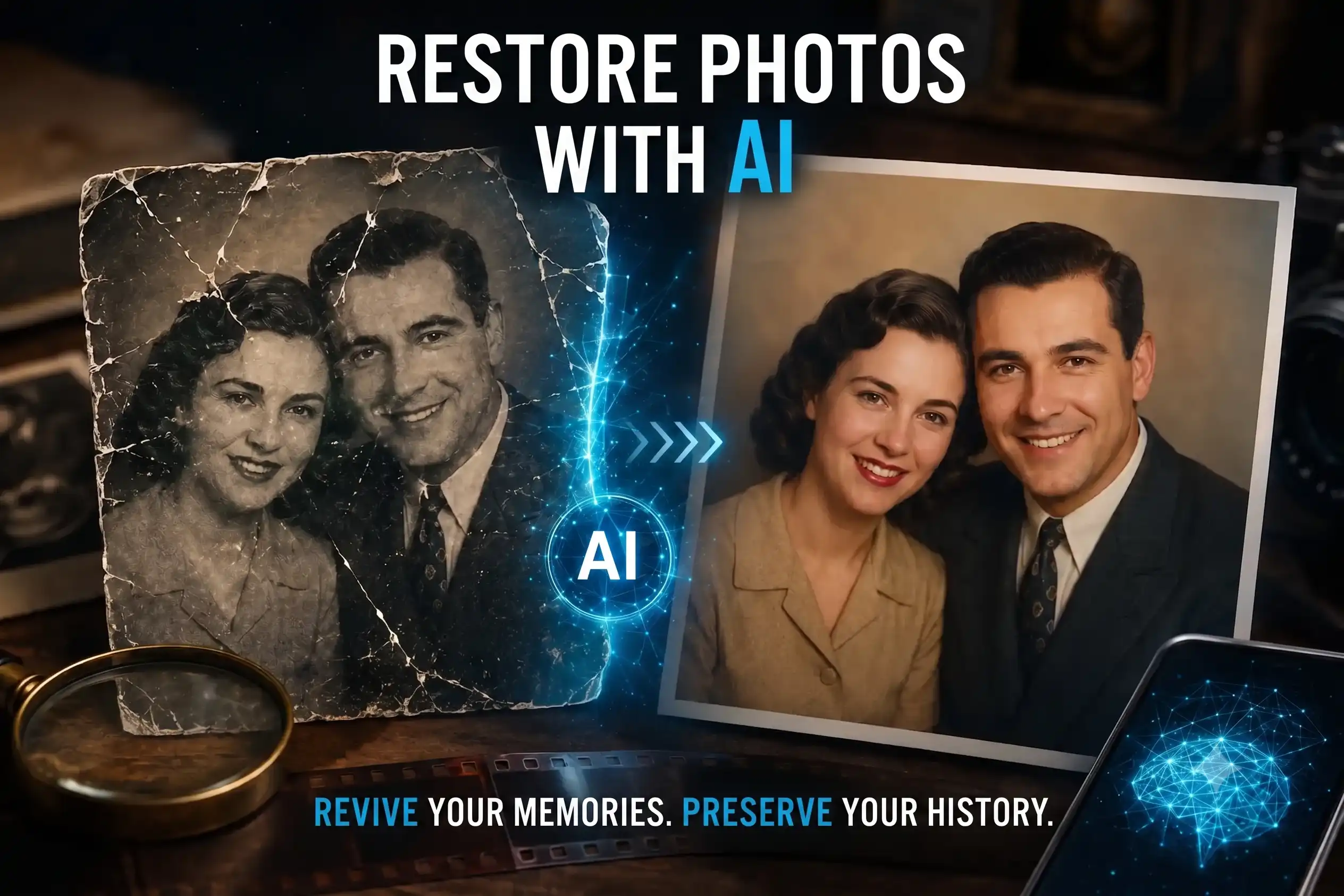
That photo of your grandparents on their wedding day has a crack running right across their faces. The only group photo from the family reunion came out with three people blinking. And that selfie from the trip you loved so much turned out completely dark.
Before, recovering those images took hours of Photoshop – or hundreds of dollars for a professional retoucher. Today, artificial intelligence can do it in seconds. But there’s a catch: if you don’t give it the right instructions, the AI will invent features, change faces, or destroy the authenticity of your photo.
In this article you’ll find the exact prompts to restore and enhance photographs with AI while maintaining maximum fidelity to the original image, case by case.
AI Tools for Restoring and Enhancing Photographs in 2026
Before we get to the prompts, you need to know where to use them. These are the artificial intelligence platforms that allow you to restore or retouch photographs with text instructions:
| Tool | Type | Best For | Price |
|---|---|---|---|
| ChatGPT (GPT-4o) | AI editor with prompts | General restoration, lighting correction, eye opening | Free / Plus |
| Google Gemini | AI editor with prompts | Restoration, sharpness enhancement, color correction | Free / Advanced |
| Adobe Firefly | AI editor integrated into Photoshop | Professional retouching, generative fill | Subscription |
| Remini | Specialized app | Face enhancement, resolution upscaling | Free (limited) |
| MyHeritage Deep Nostalgia | Specialized website | Restoration and animation of old photos | Free (limited) |
| Canva Magic Edit | Online editor with AI | Quick and accessible corrections | Free / Pro |
Recommendation: To use the prompts from this article as-is, the best options are ChatGPT (GPT-4o) and Google Gemini, since they accept detailed natural language instructions alongside the image. Adobe Firefly and Remini use interfaces with automatic controls, not text prompts.
Prompt to Restore Old Photographs with AI Without Losing Authenticity
This is the most common case: a family photo with decades of deterioration – scratches, cracks, yellow stains, loss of detail. The challenge is to repair it without the AI inventing faces or altering people’s identities.
How to Use This Prompt in ChatGPT or Gemini
- Upload the old photograph to the conversation
- Copy and paste the full prompt
- Review the result and request adjustments if needed
Full Prompt for Old Photo Restoration
“Restore this old photograph faithfully preserving the identity of the people portrayed and the historical authenticity of the image.
Naturally repair scratches, cracks, folds, tears, stains, dust, discoloration, loss of detail, and any deterioration caused by the passage of time, without modifying the original composition.
Recover the sharpness of faces, skin texture, hair, clothing, and objects present, respecting their real characteristics. Reconstruct only the deteriorated information using references consistent with the existing content, avoiding inventing facial features, expressions, or nonexistent elements.
If the photograph is in color, restore the original colors realistically. If it is in black and white, preserve its monochromatic appearance unless colorization is expressly requested.
Maintain the contrast, lighting, and tonal range characteristic of the era, preserving the vintage character and nostalgic atmosphere of the photograph.
The result should look like a professional photographic restoration performed on the original image, without artificial or AI-generated appearance, delivering a photorealistic version in high resolution.”
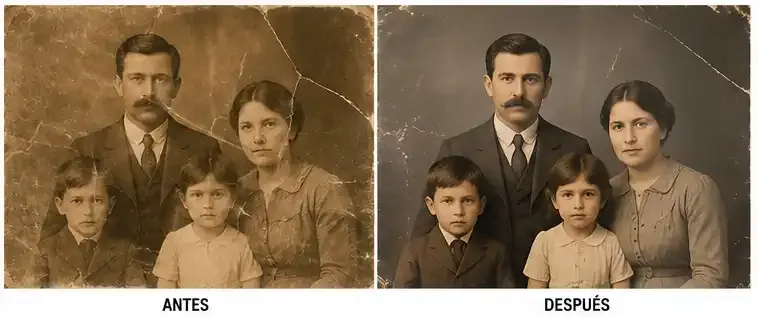 Image generated with ChatGPT
Keys to this prompt: The instruction “avoiding inventing facial features” is critical. Without it, the AI tends to “improve” faces by generating generic features that don’t correspond to the actual person. The phrase “preserving the vintage character” prevents the AI from turning a 1960s photo into an image with a modern digital finish.
Prompt to Fix Photos with Closed Eyes
One of the most frustrating problems in group photography: someone blinks right at the moment of the shot. AI can open eyes naturally, but if the prompt isn’t precise, the result can be disturbing – wrong eye color, a vacant stare, or a face that no longer looks like the same person.
Full Prompt for Closed Eyes Correction
“Correct this photograph by opening the person’s eyes in a completely natural way, preserving exactly their facial identity.
Keep intact the expression, head position, face orientation, gaze direction, perspective, lighting, shadows, and composition of the photograph.
Reconstruct only the eyes and eyelids using realistic anatomical proportions consistent with the rest of the face, respecting the eye color, eyelashes, eyebrows, and natural skin texture.
Do not modify the nose, mouth, hair, ears, wrinkles, makeup, clothing, background, or any other element of the image.
The correction must integrate perfectly with the original photograph, as if the person had opened their eyes at the exact moment the photo was taken, leaving no traces of editing or AI-generated appearance.”
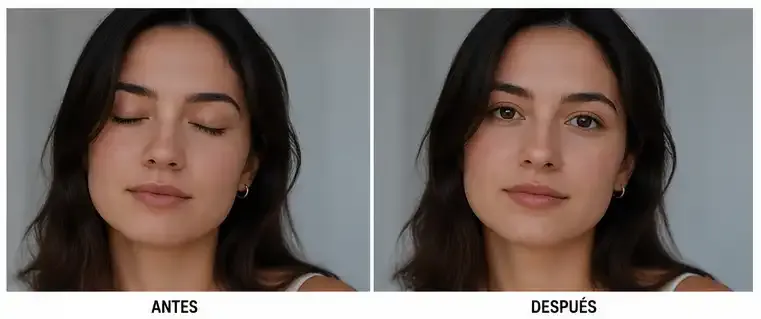 Image generated with ChatGPT
Why it works: The phrase “preserving exactly their facial identity” forces the AI to treat the face as untouchable. Without this restriction, many AIs take the opportunity to “beautify” the entire face, subtly changing the features.
Prompt to Enhance Dark or Underexposed Photos
Night shots, dimly lit interiors, accidental backlighting – underexposure hides details that are actually in the image, but the human eye can’t distinguish them. AI can recover them, but the risk is turning a nighttime scene into a photo that looks like it was taken at noon.
Full Prompt for Dark Photo Correction
“Correct this low-light photograph by recovering the hidden details in dark areas without altering the identity of the people or the original atmosphere.
Increase exposure in a balanced way, recovering information in shadows while preserving natural contrast, deep blacks, and lighting consistent with the scene.
Improve the visibility of faces, skin texture, hair, clothing, and background without producing overexposure, excessive noise, or loss of detail.
Reduce digital noise generated by low lighting, correct color casts, and adjust white balance to achieve natural colors.
Maintain the atmosphere of a nighttime or low-light scene, avoiding turning it into a photograph taken in full daylight.
The result should look like a properly exposed photograph from the original capture, without artificial smoothing or AI-generated appearance, maintaining a completely photorealistic finish.”
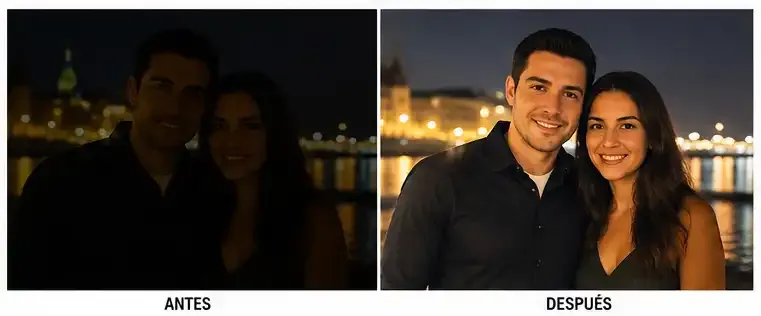 Image generated with ChatGPT
Key point: The instruction “maintain the atmosphere of a nighttime scene” makes the difference between a professional correction and an artificial result. A photo in a dimly lit bar should still look like a dimly lit bar – just with visible faces.
Prompt to Fix Overexposed Photos with Too Much Light
The opposite problem: excess light that “burns” areas of the image, creating white patches with no detail in skin, sky, or reflective surfaces. Recovering that lost information without creating artifacts is one of the most complex challenges, even for AI.
Full Prompt for Overexposure Correction
“Correct this overexposed photograph by recovering the lost information in areas with excessive lighting without modifying the identity of the people or the original composition.
Naturally reduce the highlights and reconstruct lost details in skin, hair, clothing, sky, walls, and any surface affected by overexposure.
Restore the dynamic range by balancing highlights, midtones, and shadows to achieve uniform and realistic lighting.
Correct washed-out colors caused by overexposure, recovering natural skin tones and environmental tones without oversaturating the image.
Keep intact the skin texture, facial details, original shadows, and atmosphere of the scene.
Avoid halos, gray zones, loss of contrast, or AI-generated artifacts.
The result should look like a properly exposed photograph from the moment of capture, with a photorealistic, natural, and fully integrated finish.”
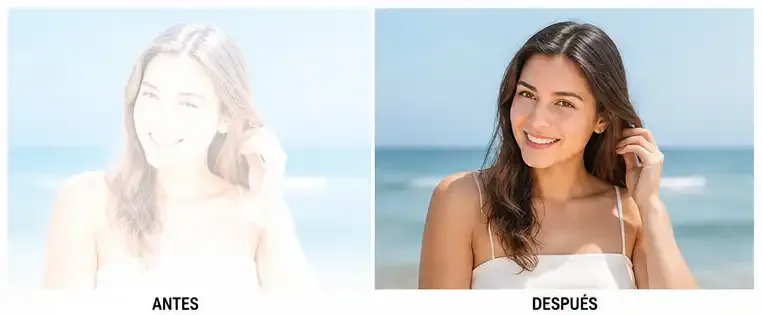 Image generated with ChatGPT
Important limitation: If the overexposure is extreme (completely white areas), the original information no longer exists in the image. In those cases, the AI reconstructs based on context – the result will be an approximation, not an exact recovery. Be transparent about this when editing other people’s photos.
Prompt to Fix Blurry Photographs and Recover Sharpness
Blur is technically one of the hardest problems to fix because it involves reconstructing information that the camera didn’t capture precisely. AI can significantly improve sharpness, but it’s essential to prevent it from generating invented details or artificial edges.
Full Prompt for Blur Correction
“Enhance this blurry photograph by recovering the maximum possible sharpness without altering the identity of the people or adding nonexistent details.
Increase the definition of the face, eyes, hair, clothing, and objects while respecting the original texture of each surface.
Reduce blur naturally, avoiding halos, exaggerated edges, oversharpening, or digital artifacts.
Preserve the lighting, contrast, colors, and original depth of field of the photograph.
Do not modify the facial expression, pose, composition, or background of the image.
The result should look like a properly focused photograph from the camera, maintaining a completely photorealistic finish without AI-generated appearance.”
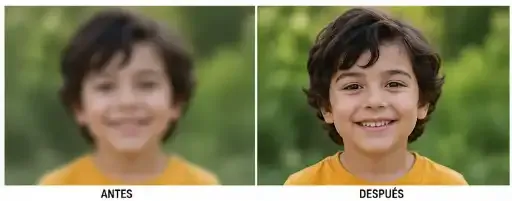 Image generated with ChatGPT
Practical tip: If the photo has intentional background blur (bokeh), add to the prompt: “Preserve the background blur as it is, only improve the sharpness of the main subject.” Without this clarification, the AI may try to focus the entire image and destroy the bokeh effect.
Tips for Getting Better Results in Every Restoration
Beyond the prompts, these principles make the difference between an acceptable result and a professional one:
-
Upload the image at the highest resolution possible. The more information the AI has to work with, the better the results. Avoid screenshots or images compressed by WhatsApp.
-
Be specific about what you DON’T want changed. AI tends to “improve” everything it can. If you only need to correct the lighting, say it explicitly: “Do not modify the faces, clothing, or background.”
-
Iterate – don’t expect perfection on the first try. If the result isn’t exact, request specific adjustments: “The eyes came out too light, darken them a bit” or “The skin came out too smooth, preserve more texture.”
-
Combine tools. You can restore an old photo in ChatGPT and then run it through Remini to increase the final resolution. Each tool has different strengths.
-
Always save the original image. Before any editing, keep an unmodified copy. If the AI alters a face, you’ll need the original as a reference to correct it. If you need to organize files efficiently, tools like PDFgear can help you manage scanned documents before restoring them.
On ethics: If you restore other people’s photos, be transparent about the process. AI can subtly alter facial features without it being obvious to the naked eye. Always inform that the image was processed with artificial intelligence.
Which Tool to Choose Based on the Type of Restoration
Not all tools perform equally for every case. This quick guide helps you choose:
| Restoration Type | Best Tool | Alternative |
|---|---|---|
| Old photos with deterioration | ChatGPT (GPT-4o) | MyHeritage |
| Closed eyes | ChatGPT (GPT-4o) | Google Gemini |
| Dark / underexposed photos | Google Gemini | Adobe Firefly |
| Overexposed photos | ChatGPT (GPT-4o) | Adobe Firefly |
| Blurry photos | Remini | ChatGPT (GPT-4o) |
| Resolution upscaling | Remini | Canva Magic Edit |
If you’re interested in exploring more applications of artificial intelligence, don’t miss our article about the ECity simulator, which uses AI and simulation to teach energy engineering.
Is It Worth Restoring Photos with Artificial Intelligence in 2026?
AI doesn’t replace a professional retoucher in extreme cases, but for 99% of everyday photos – the damaged family photo, the dark selfie, the blurry portrait – the results are surprisingly good and achieved in seconds.
The key isn’t the tool, but the prompt you give it. A generic instruction like “improve this photo” will produce generic results. The prompts in this article are designed so that the AI respects the identity, authenticity, and original character of each image.
Copy the prompt you need, upload your photo to ChatGPT or Gemini, and recover those memories you thought were lost.